
Most IPTV problems come down to a handful of causes: the home network, the login details, or a setting in the player. Work through this guide in order. The first section fixes the majority of issues in a couple of minutes.
Start here: five quick checks
- Restart everything. Unplug your streaming device and your router for 30 seconds, then power the router on first and wait until it's fully connected.
- Test your speed on the device itself using the ViviMate speed test. Phones often get much better Wi-Fi than a stick behind the TV.
- Check your subscription is active. Players using Xtream Codes usually show the expiry date in account info; the subscription guide explains renewals.
- Try a different channel. If only one channel fails, the problem is likely with that stream rather than your setup. Report it to support.
- Try a second device or player. If it works elsewhere, the issue is with the first device or app. The IPTV player guide lists the supported alternatives.
Buffering and freezing
Buffering means video is arriving more slowly than it plays. In rough order of impact:
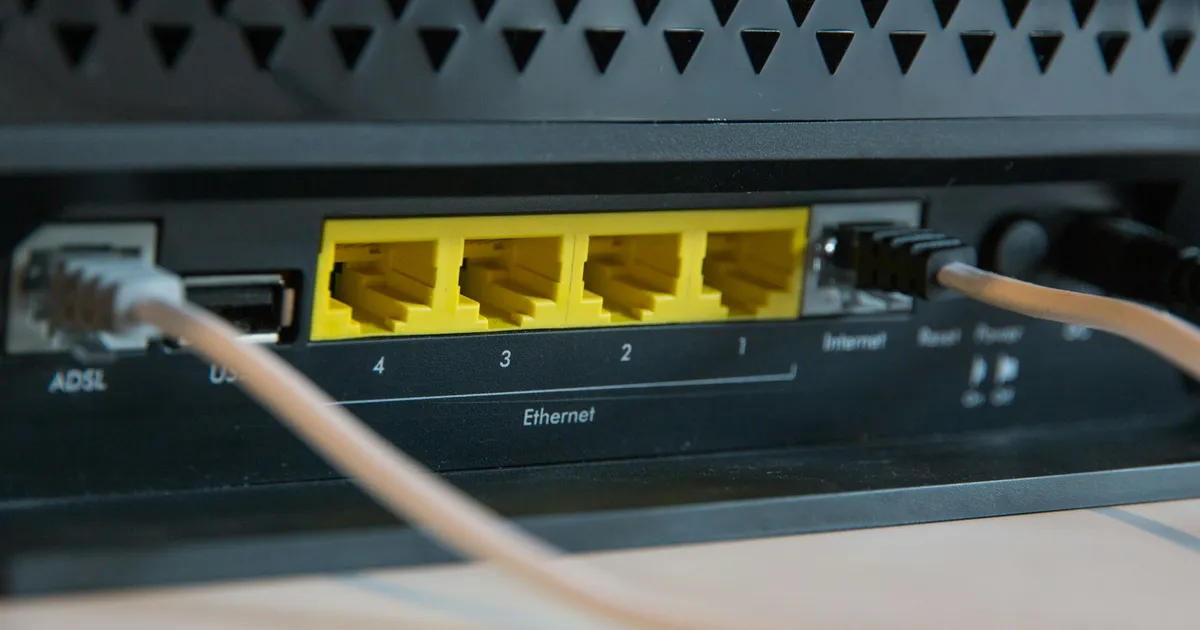
- Switch to a wired connection. Ethernet removes most drop-outs. On Fire TV sticks, use an Ethernet adapter.
- Improve Wi-Fi: use the 5 GHz band, move the router or add a mesh point, and use an HDMI extender to move sticks from behind the TV.
- Reduce competition: large downloads, game updates, cloud backups and other streams on the same network all take bandwidth.
- Step down a quality level during busy times; an HD version of a channel needs far less bandwidth than a 4K one.
- Increase the player's buffer if it has a buffer-size setting. A larger buffer smooths out short dips at the cost of a slightly slower start.
- Check for peak-time slowdowns. If buffering happens only in the evening or during big events, your internet provider may be congested or managing video traffic. Some viewers find a VPN helps in that case. Pick a nearby VPN server and re-run the speed test with the VPN on.
Login errors and "authorization failed"
- Check the details character by character. Usernames and passwords are case-sensitive; the server address needs the correct
http://prefix and port if one was given. The M3U vs Xtream Codes guide lists the common mistakes for each format. - Remove stray spaces, especially at the end of pasted text.
- Confirm your subscription hasn't expired, or ask support to check.
Channel list or VOD not loading
- Refresh or reload the playlist from the player's settings.
- Clear the player's cache (or its data, then log in again).
- On M3U playlists, make sure the full link was pasted. Long links are easily cut short.
- Check the device's date and time are correct; a wrong clock can break secure connections.
TV guide missing or wrong
Empty guides and shifted times have their own set of fixes. See the ViviMate EPG guide.
No sound or audio out of sync
- Switch the audio track. Some channels carry several; the player's audio menu lets you choose.
- Change the decoder. Toggle between hardware and software decoding in the player settings.
- Adjust audio delay if your player offers an A/V sync setting.
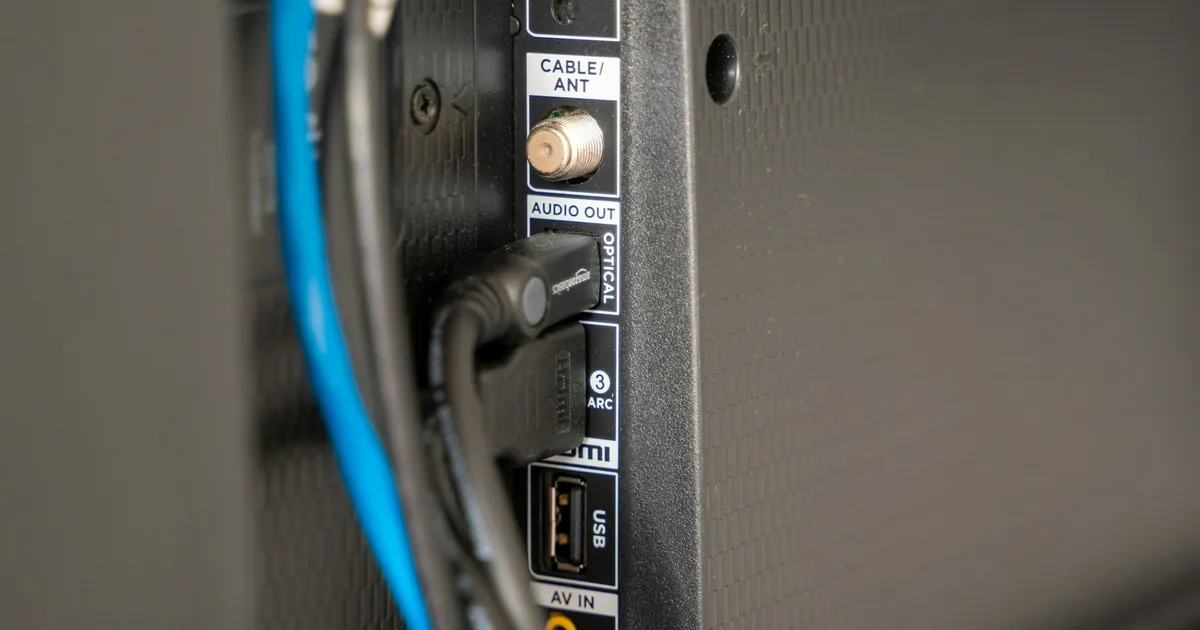
- Check passthrough settings. If you use a soundbar or AV receiver, try switching the device's audio output from passthrough to PCM (stereo), or the reverse.
Picture quality lower than expected
Make sure you've selected the 4K version of a channel where one exists, and that your device outputs 4K. The ViviMate 4K and 8K guide has a full checklist.
Player crashes or freezes on launch
- Force-stop the app and reopen it.
- Clear its cache.
- Update the app and the device's system software.
- Free up storage. Low storage causes crashes on sticks and older boxes.
- Uninstall and reinstall the player, then add your ViviMate login again.
When to contact support
If you've worked through the relevant section and the problem persists, contact ViviMate support. Include:
- your device and player app (and version, if you know it);
- which channels or titles are affected, and when it started;
- your speed test result from the affected device;
- a photo or screenshot of any error message.
With that information support can usually pinpoint the issue in one reply. You may also find your answer in the ViviMate FAQ.