
Watching ViviMate on a Smart TV means one less device, one less remote and one less HDMI input to switch between. The trade-off is that TV app stores are more limited than phones or streaming sticks, so it pays to know which kind of TV you have before you start. This guide covers Samsung, LG and Android-based TVs.
First, find out which kind of Smart TV you have
The software inside the TV decides which player apps you can install:
| TV software | Found on | Where apps come from |
|---|---|---|
| Tizen | Samsung Smart TVs | The Apps section of Samsung's Smart Hub |
| webOS | LG Smart TVs | The LG app store on the home screen |
| Android TV / Google TV | Many Sony, Philips, TCL and other brands | Google Play |
If you're not sure, open the TV's settings and look for an "About" or "Support" page, which usually names the operating system. Android-based TVs behave much like an Android TV box, so if that's what you have, the ViviMate Android guide is the better fit.
Choose a player your TV supports
ViviMate works on Smart TVs through third-party IPTV player apps. The supported players for Smart TVs are IPTV Smarters, IBO Player and Smart IPTV. They are made by independent developers, not by ViviMate. Which ones appear in your store depends on the TV model, its age and your country, so search for each by name. Our ViviMate IPTV player guide compares them in more detail, and the ViviMate compatible devices page lists the players for every device.
How Smart TV players are activated
Smart TV players generally work in one of two ways.
Login on the TV
Players such as IPTV Smarters let you type your details directly with the TV remote. Choose the Xtream Codes option if it's offered, enter the server address, username and password from your setup message, and the player loads the channel list and guide. Typing long addresses with a remote is slow, so take your time and check each character.
Activation through the player's website
Players such as IBO Player and Smart IPTV show a MAC address or device key on screen when you first open them. You then go to the player developer's website on a phone or computer, enter that code, and paste your M3U playlist link there. Restart the app on the TV and the playlist appears. This avoids typing on the TV, but it means your playlist link passes through the player's website, so only use the developer's official site.
Some Smart TV players charge their own activation fee after a free trial period. That fee is paid to the app's developer and is separate from your ViviMate subscription. Check the developer's website before you commit to an app.
Not sure which login format suits your player? The M3U vs Xtream Codes guide explains the difference.
Get the best picture from your TV
- Pick the right picture mode. "Vivid" or "Dynamic" modes look bright in a shop but over-sharpen streamed video. "Movie", "Cinema" or "Filmmaker" modes are usually more natural, and "Sport" mode can suit fast-moving matches.
- Turn down motion smoothing if films look unnaturally smooth. It goes by different names, such as Auto Motion Plus, TruMotion or Motionflow.
- Use a 4K stream on a 4K TV where one is offered. HD channels are upscaled by the TV, which is normal. The ViviMate 4K and 8K guide explains what to expect.
Connect the TV properly
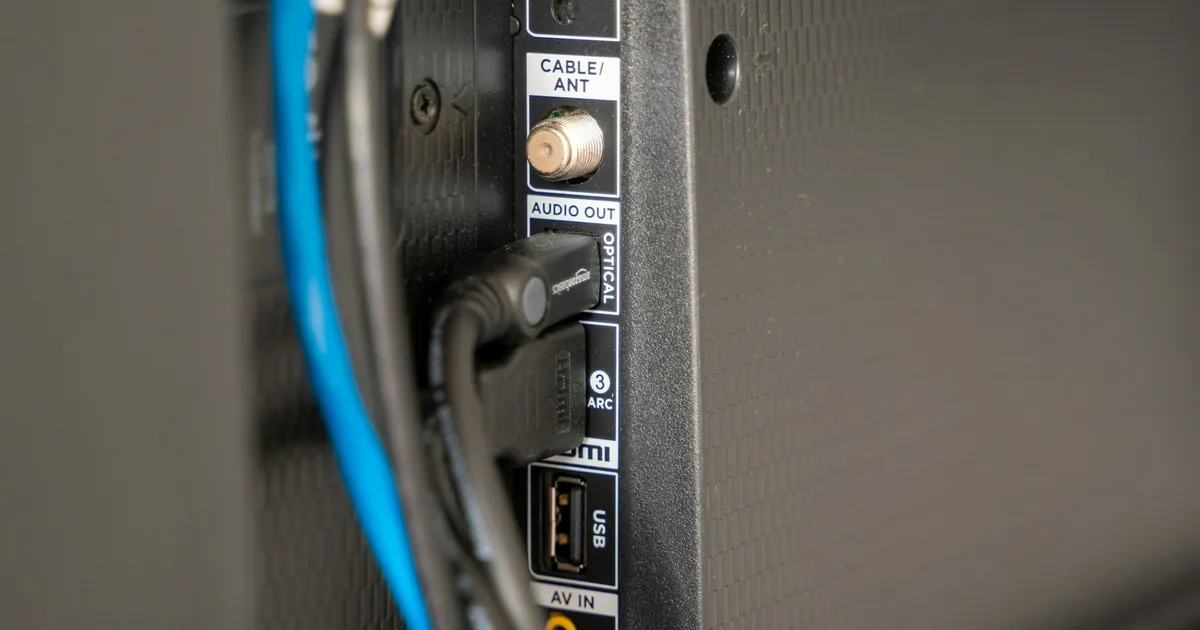
A Smart TV's built-in Wi-Fi is often weaker than a phone's, and the TV usually sits far from the router. If your TV has an Ethernet port, a cable is the most reliable way to stream live sport and 4K. On Wi-Fi, connect to the 5 GHz network if your router offers one, then run the ViviMate speed test in the TV's web browser to see the speed the TV itself gets.
Smart TV problems and quick fixes
| Problem | Try this |
|---|---|
| The player isn't in the app store | Search for the other supported players; availability varies by model and country. |
| Playlist doesn't appear after website activation | Check the MAC address was entered exactly, then fully restart the app or the TV. |
| App is slow on an older TV | Hide channel groups you don't watch so the TV has less to load. |
| Guide is empty or times are wrong | See the ViviMate EPG guide for loading and time-zone fixes. |
For anything else, work through the ViviMate troubleshooting guide. If you're choosing a plan, mention your TV model when you order on the ViviMate plans page so your setup instructions match it.