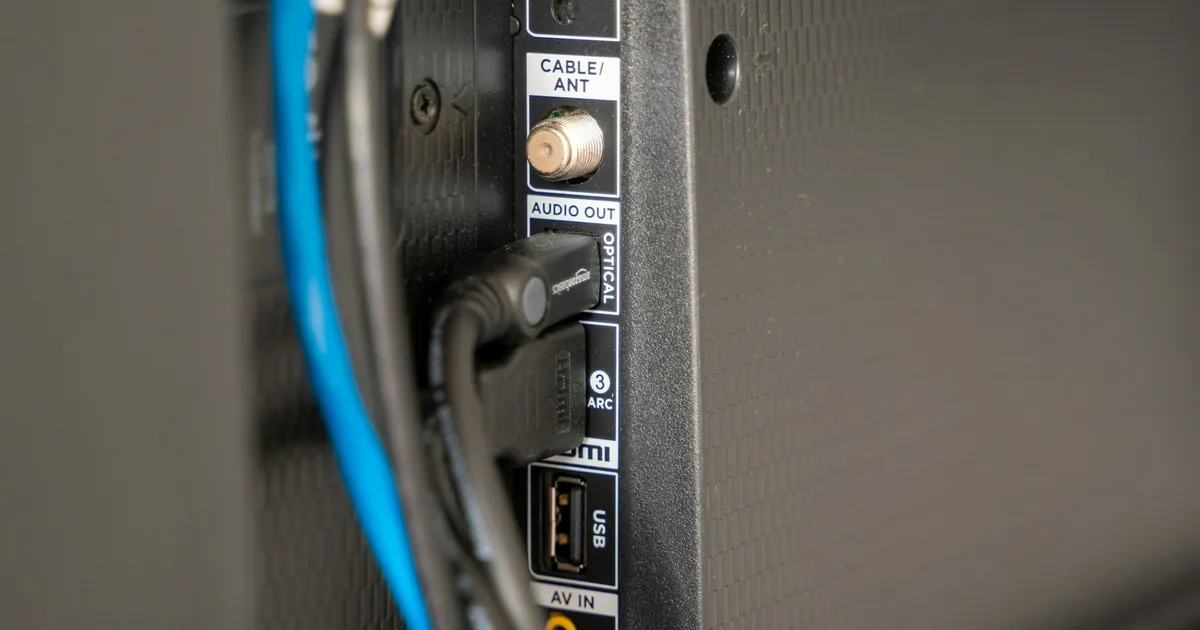


MAG boxes are dedicated IPTV set-top boxes. Unlike phones or streaming sticks, you don't install a player app: the box has a built-in portal that loads your channels, guide and on-demand library once it's linked to ViviMate. That makes MAG one of the simplest options day to day, as long as the first setup is done carefully. If you're still choosing hardware, compare MAG with the other options on the ViviMate compatible devices page.
How a MAG portal connection works
Every MAG box has a unique MAC address, a hardware identifier printed on the box. When you order, that MAC address is linked to your ViviMate subscription. You then enter a MAG portal address on the box, and the portal recognises the box by its MAC address. There's no username or password to type, which is why MAG setup only works for the exact box whose MAC address was registered.
Before you order: find your MAC address
- Turn the box over and look at the label on the underside. The MAC address usually starts with 00:1A:79.
- It's also usually shown in the box's device information menu.
- Send the MAC address with your order on the ViviMate plans page, and check it character by character. A single wrong digit means the portal won't recognise the box.
Enter the ViviMate portal
Menu names vary slightly between models and firmware versions, but the steps are similar:
- Open Settings from the box's start menu.
- Go to System settings → Servers → Portals.
- Give Portal 1 a name, such as "ViviMate".
- Enter the portal address from your setup message exactly as sent, including any trailing slash.
- Save, then restart the box. The portal loads automatically after a restart.
Set the correct time and time zone
MAG boxes take their clock from the network, and the portal uses that clock to show the guide and to play catch-up. If the time zone is wrong, the guide will be shifted by an hour or more and catch-up may start at the wrong point. Set your time zone in the box's settings (its location varies by firmware), then restart. The ViviMate catch-up guide explains why timing matters so much for catch-up.
Getting around with the MAG remote
- Arrows and OK browse categories and open channels.
- Menu usually opens options such as favourites, sorting and the guide.
- Back or Exit returns to the previous screen without closing the portal.
Adding your most-watched channels to favourites makes the portal much quicker to use than scrolling through every category.
MAG problems and fixes
| Problem | Likely cause | Fix |
|---|---|---|
| Portal won't load or shows an error | Typo in the portal address, or the box isn't online | Re-enter the address exactly; check the network cable or Wi-Fi. |
| "STB blocked" or not authorised | MAC address registered incorrectly, or subscription not active | Compare the MAC on the label with the one you sent; contact support. |
| Guide times are wrong | Time zone setting | Correct the time zone and restart the box. |
| Channels freeze | Network or Wi-Fi strength | Use the Ethernet port and run the speed test on another device. |
Replacing or adding a box
Because the portal is tied to one MAC address, a new or replacement MAG box needs its own MAC address registered. Contact ViviMate support with the new box's MAC address before you switch. For other devices, which use apps instead of a portal, see the ViviMate setup guide.